USA
 CA
 UK
 EU
 DE


 apetrosian
A printer can show an ink level of zero and still print a perfect page. One report, printed by the printer itself, tells you which it is in about a minute.
NOTE
Why this page exists
Our 923e cartridges are the first compatible cartridges that work in HP+ printers, where other compatible cartridges don’t reliably work. To get there, they don’t report their ink level to the printer. So your printer may call a cartridge low or empty while it still has plenty of ink. The report below tells you when a cartridge is actually empty, so you replace it then and not before.
Start where you are:
- The printer says a cartridge is low, but your prints look fine. Go to “Read the color blocks.”
- Your prints look bad and you want to know if it is the cartridge or the printer. Print the report below, then read “What each fault looks like.”
- Support sent you here. Print the report, then photograph the whole sheet: flat on a table, from straight above, in even light with no shadow. Send the photo to support.
Print the report
The report is called Print Quality Diagnostic Report, and the printer prints it from its own touchscreen. Load plain white paper first.
OfficeJet Pro 8120e and 8130e series. On the touchscreen, go to Menu, then Tools, then Reports, then Status Reports. Tick Print Quality Diagnostic Report, then press Print.
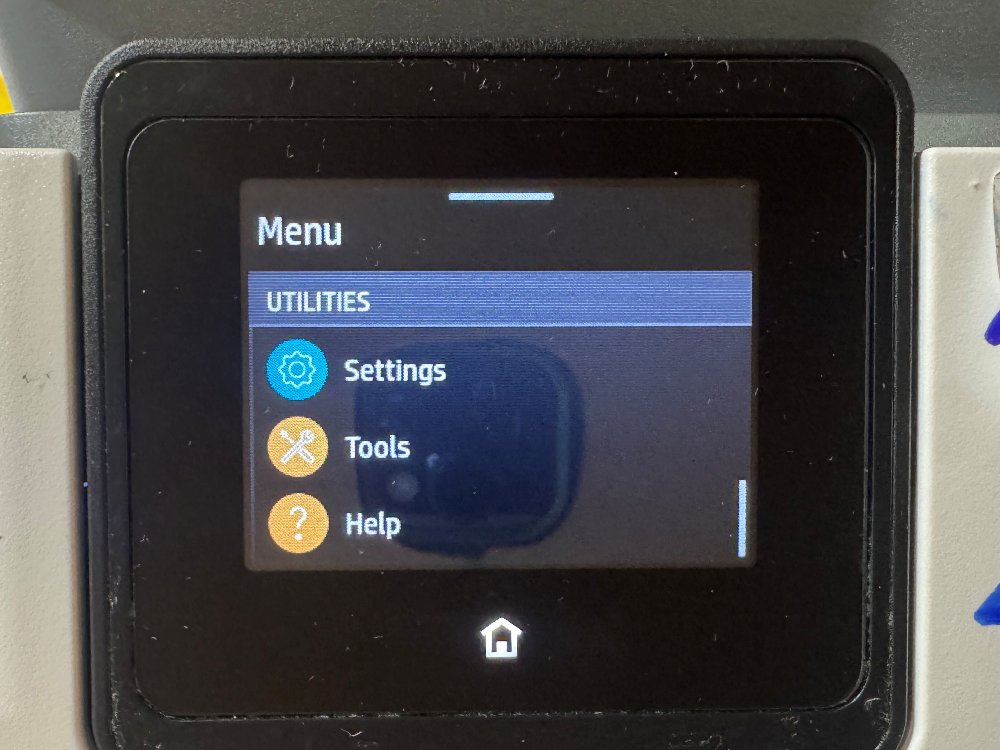
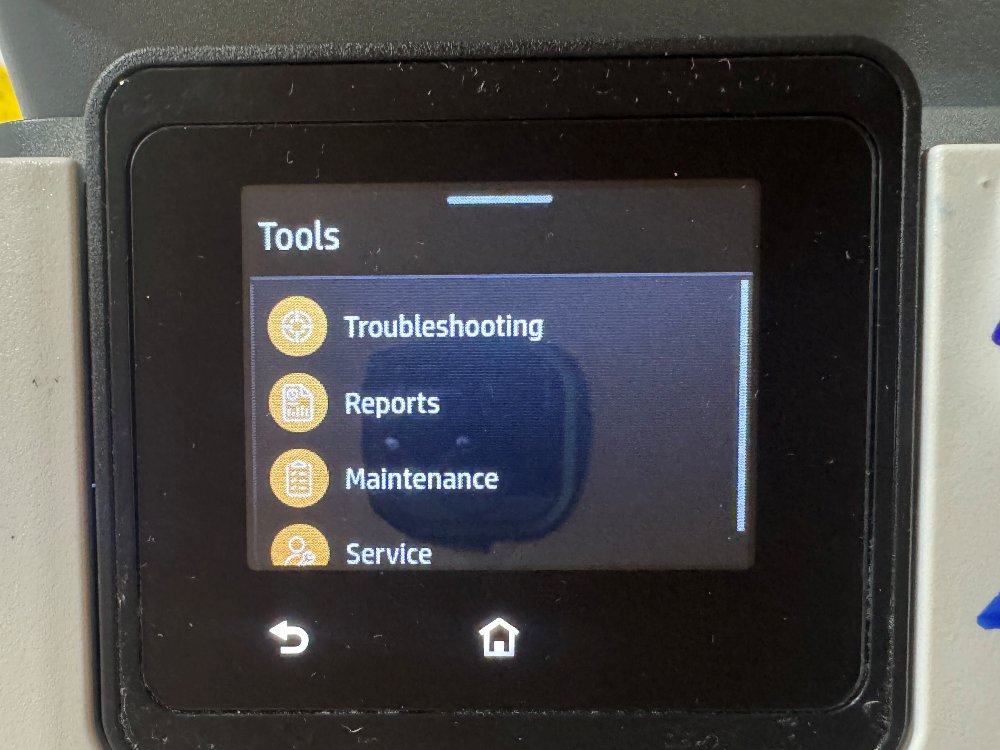
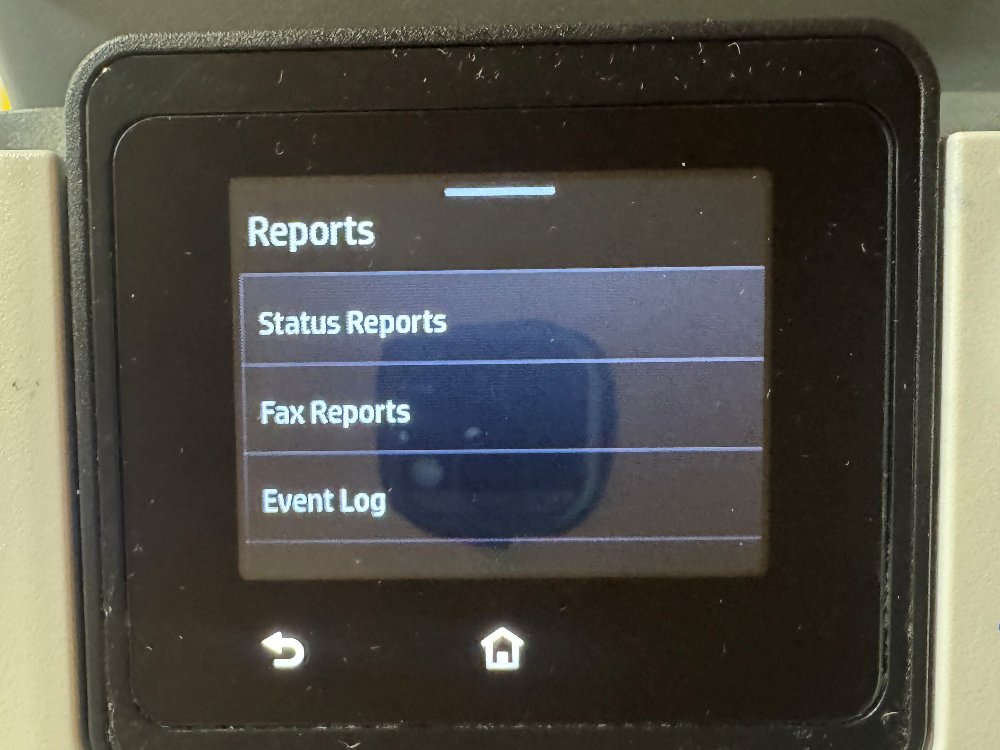
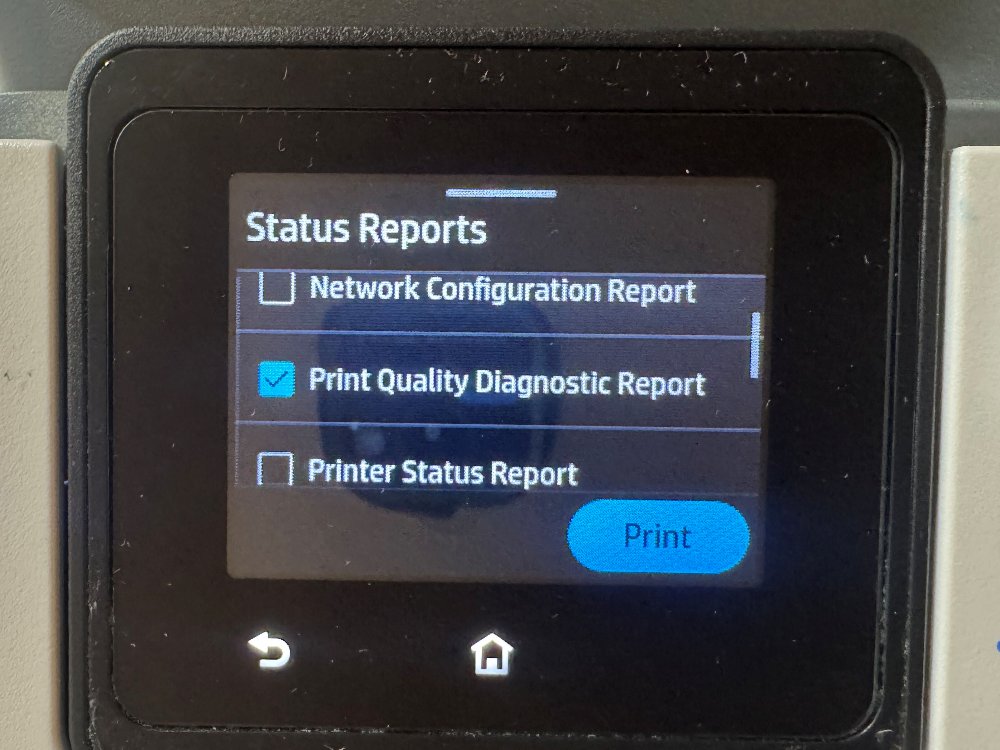
Read the color blocks
Trust the color blocks over the ink level line at the top of the report. The Estimated Cartridge Level line is read from the cartridge’s chip. The blocks are ink on paper, and the chip plays no part in printing them.
So a cartridge can show 0 and still print a solid block. Here is a real report with Y = 0 in the top line, and the yellow block underneath printing solid:
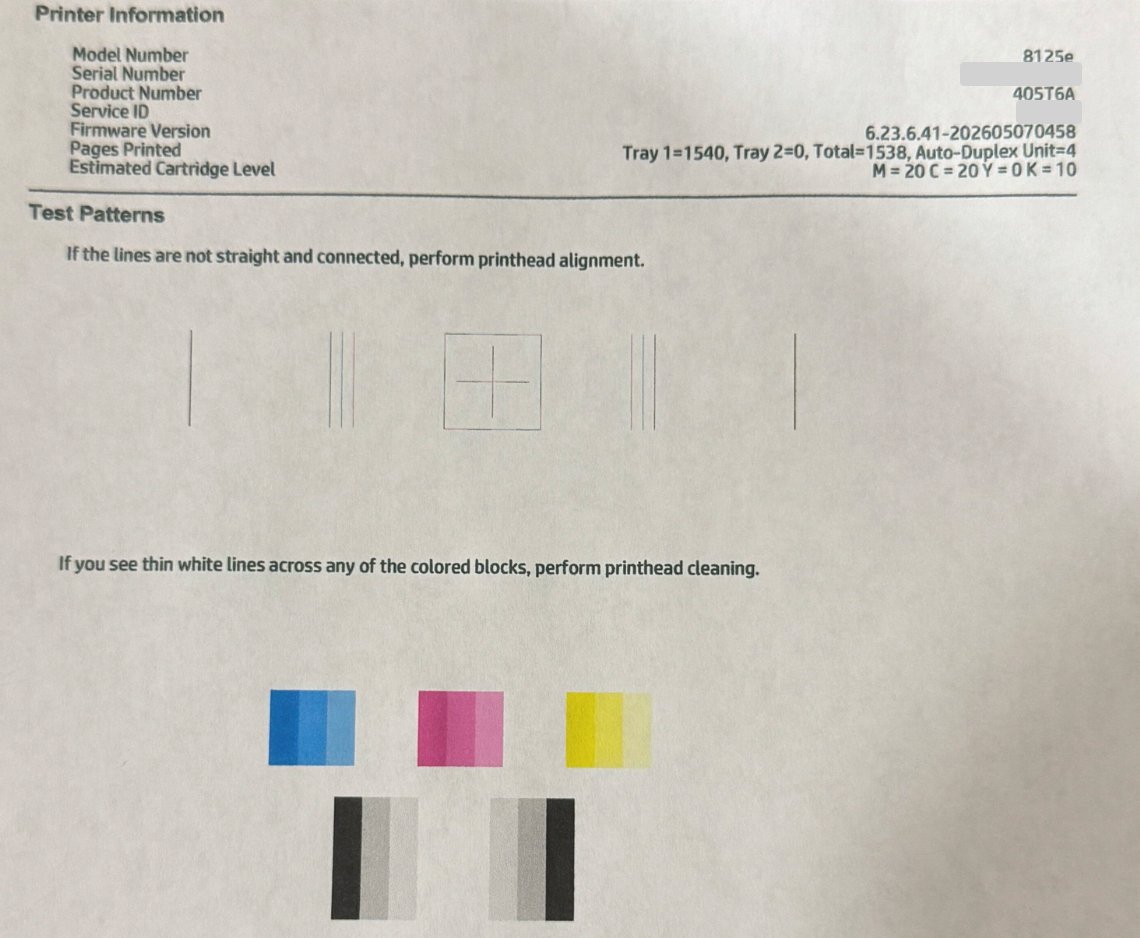
The two can disagree the other way too, which the next sections show. If the line and the blocks tell different stories, go by the blocks.
What a healthy report looks like
On a healthy report every color block is solid and the alignment lines run straight and connected. Compare your sheet with this one.
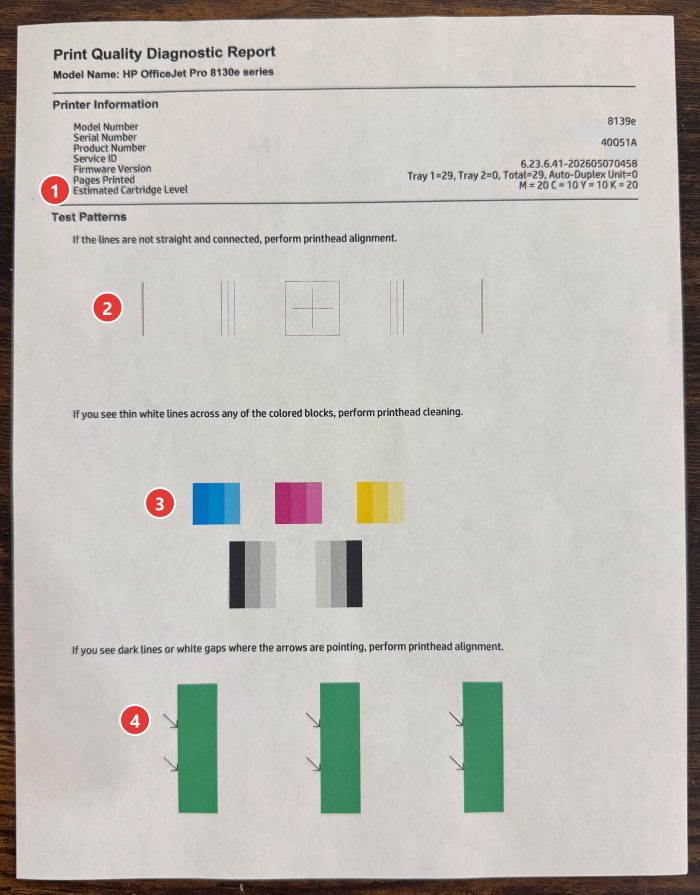
The four callouts:
- The Estimated Cartridge Level line. Don’t decide by it.
- The alignment lines near the top. Straight and connected is what you want.
- The cyan, magenta, yellow and black blocks. Solid, with no white lines across them.
- The three green blocks with arrows. Even color, with no dark lines or white gaps where the arrows point.
Look at our photo on your phone or computer screen. Please don’t print it on the printer you are testing: the copy would carry any fault your printer has, and it would stop being a fair reference.
What each fault looks like
There are two kinds of fault, and the report separates them. White streaks across a color block mean the printhead needs cleaning. Broken or misaligned lines mean the printhead needs aligning, and ink has nothing to do with that one.
White streaks across a color block
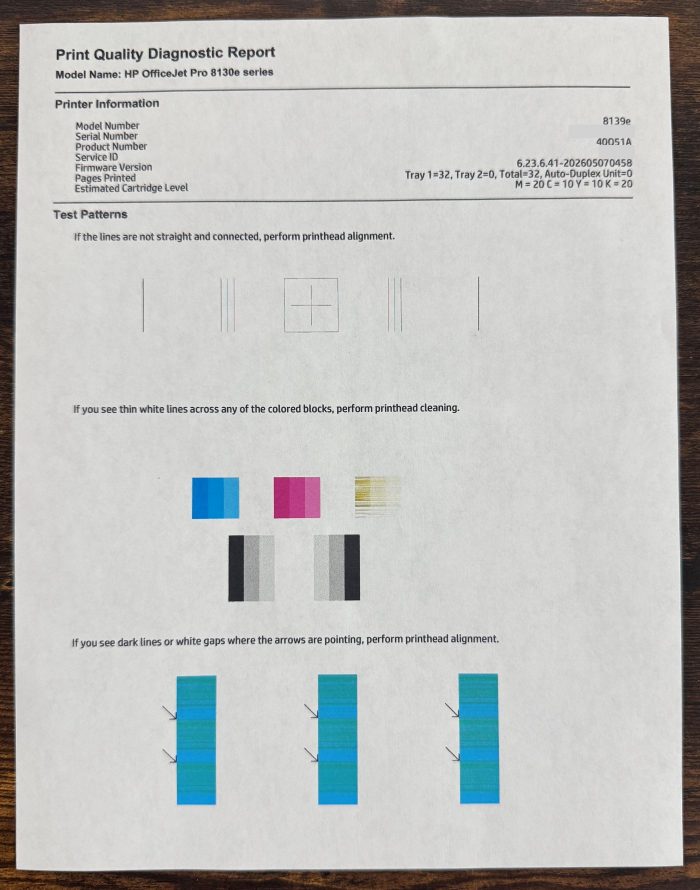
Yellow reads 10 on this sheet, and the block is failing anyway. In the last section, a reading of 0 came with a solid block. The number and the block can disagree in both directions, so go by the block.
Lines that don’t meet
Lines that run in broken pieces, or pairs that don’t line up, point to printhead alignment. Ink is not the cause to look at here, so don’t swap a cartridge for this.
What to do next
If a color block has white streaks, run one cleaning, print the report again, and look at the same block. One cleaning uses about as much ink as a dozen pages, so don’t repeat it without a reason.
- On the touchscreen, go to Menu, then Tools, then Troubleshooting, then Print Quality, then Printhead Cleaning.
- Choose Level 1, then Print.
- Print the Print Quality Diagnostic Report again and check the block that had streaks.
- Streaks still there? Run Level 2 the same way, then print the report once more.
The screen also lists a Level 3. You don’t need it for this.
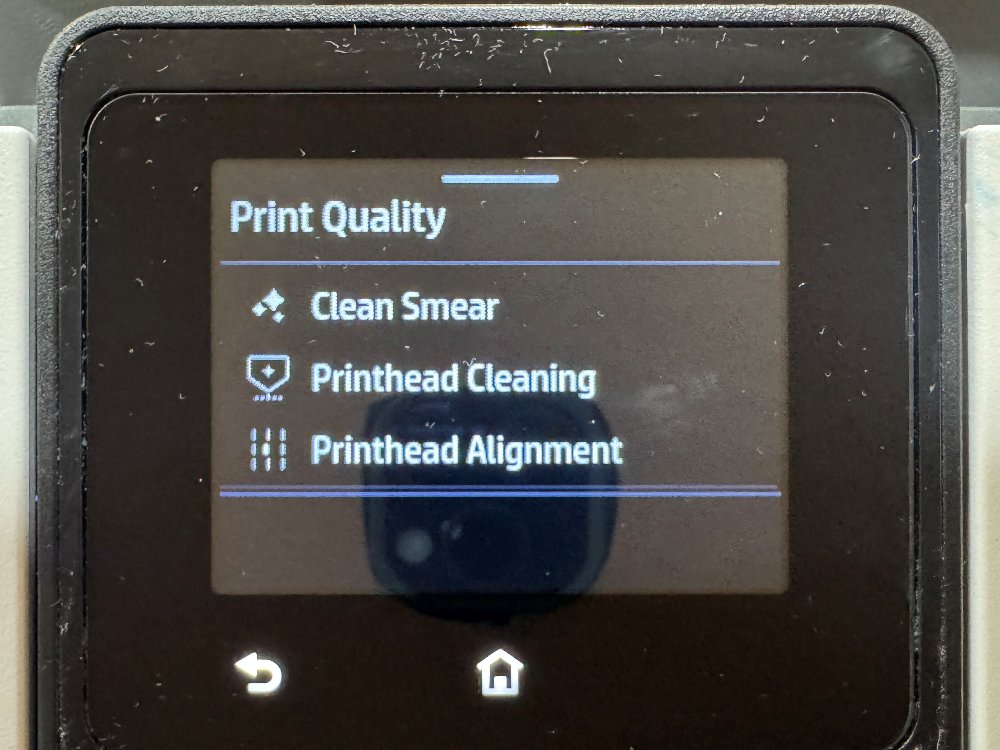
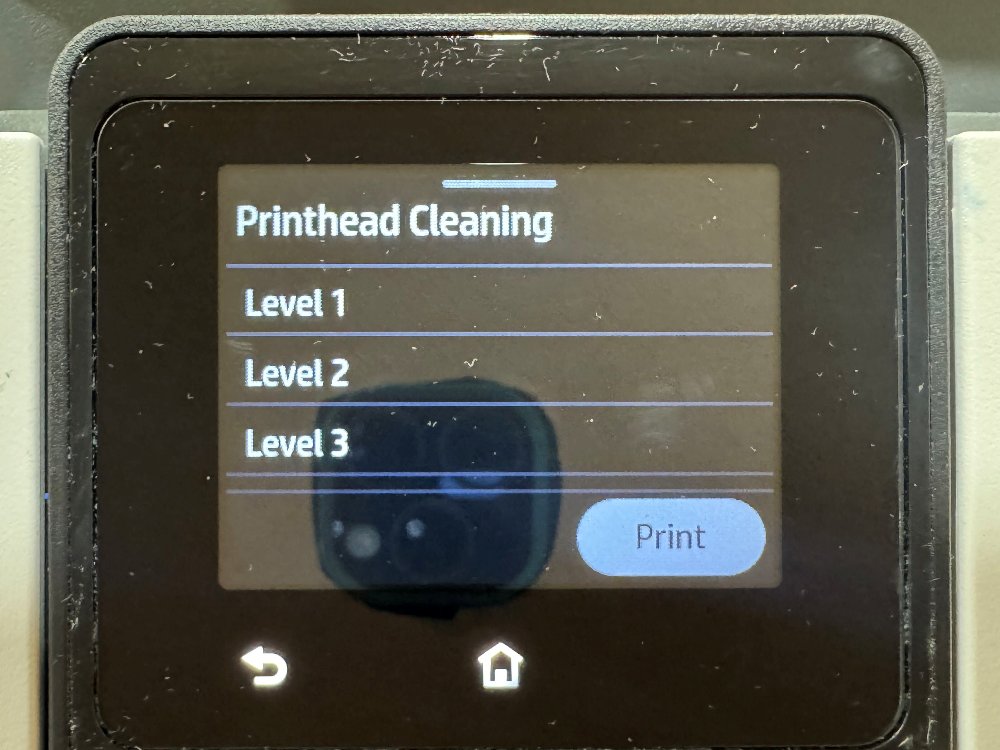
If the streaks are still there after Level 2, stop cleaning. The next step is the cartridge for that color.
If the problem was lines that don’t meet, choose Printhead Alignment in the same Print Quality menu instead, and follow the screen.
Which cartridge to replace
Replace the cartridge whose color block is still weak after cleaning, and leave the others in. The report shows you which one: each block belongs to one color.
If the weak color is a cartridge you installed just now, it is faulty, not empty. Contact us and we will send a free replacement.